Compose Multiplatform
Compose Multiplatform is a declarative UI framework developed by JetBrains for sharing Kotlin UI code across multiple platforms.
Enabling Compose
Use settings.compose.enabled to enable Compose:
product: jvm/app

dependencies:
  - $compose.desktop.currentOs # (1)!

settings:
  compose: enabled # (2)!
- This library is from the built-in
$composecatalog, accessible when Compose is enabled - Enables the Compose toolchain (compiler plugin and runtime dependencies)
product: android/app

dependencies:
  - $compose.foundation # (1)!
  - $compose.material3

settings:
  android:
    applicationId: com.example.app
  compose: enabled # (2)!
- These libraries are from the built-in
$composecatalog, accessible when Compose is enabled - Enables the Compose toolchain (compiler plugin and runtime dependencies)
product:
  type: kmp/lib
  platforms: [ jvm, android, iosSimulatorArm64, iosArm64 ]

dependencies:
  - $compose.foundation: exported # (1)!
  - $compose.material3: exported

settings:
  compose:
    enabled: true # (2)!
- These libraries are from the built-in
$composecatalog, accessible when Compose is enabled. We export them to consumers because we use types from these libraries in our own public API. - Enables the Compose toolchain (compiler plugin and runtime dependencies)
Enabling Compose does the following:
- configures the Compose compiler plugin for the Kotlin compiler
- adds the required
org.jetbrains.compose.runtime:runtimeandorg.jetbrains.compose.components:components-resourcesdependencies (implicitly) - enables the built-in
$compose.*library catalog for all optional Compose modules
Custom Compose version
You can specify the exact version of the Compose framework to use this way:
settings:
  compose:
    enabled: true
    version: 1.5.10
Using multiplatform resources
The Kotlin Toolchain supports Compose Multiplatform resources.
Place your resources in the composeResources folder at the root of your module:
my-kmp-module/
├─ src/
│  ╰─ ... # (1)!
├─ composeResources/
│  ├─ values/
│  │  ╰─ strings.xml
│  ╰─ drawable/
│     ╰─ image.jpg
╰─ module.yaml
- Your Kotlin code is here
The Kotlin Toolchain then automatically generates the Kotlin accessors for these resources, and you can use them in your Kotlin code:
import my_kmp_module.generated.resources.Res
import my_kmp_module.generated.resources.hello
// other imports

@Composable
private fun displayHelloText() {
    BasicText(stringResource(Res.string.hello))
}
Read more about setting up and using compose resources in the documentation.
Generated accessors package
By default, resources accessors are generated in the package <sanitized-module-name>.generated.resources. Names are
sanitized by lowercasing them, replacing - characters with _, and prefixing them with _ if they start with a
digit.
In the above example, where the module name is my-kmp-module, the package name for the generated resources is
therefore my_kmp_module.generated.resources.
You can customize the package name by setting the settings.compose.resources.packageName property in your module file:
settings:
  compose:
    resources:
      packageName: com.example.gen
Modules published to a Maven repository
Libraries usually declare publication coordinates in the settings.publishing section. When a group is declared
there, it is included in the default package, which becomes
<sanitized-group>.<sanitized-artifact-id>.generated.resources, where <sanitized-artifact-id> defaults to the
module name, just like the published coordinates do. This is the naming scheme of the Compose Multiplatform Gradle
plugin, so such a module gets the same package as it would in a Gradle build, as long as it keeps the default
artifactId. Modules without a group still differ from Gradle, though: Gradle derives a default group from the
root project name and the project path, while the Kotlin Toolchain uses the module name alone.
Customizing Res object name
By default, generated resources accessors are extension of the <resources-package-name>.Res object.
You can customize the name of this object via the settings.compose.resources.nameOfResClass property:
settings:
  compose:
    resources:
      nameOfResClass: Resources
Resources.string.hello instead of Res.string.hello.
Making resource accessors public
Generated Res object and the accessors are internal by default,
so they are only visible in the module that has the resources.
If you want to expose your resources to the consumers of your module and make them part of the module's API,
you can use settings.compose.resources.exposedAccessors property:
settings:
  compose:
    resources:
      exposedAccessors: true
Res class public.
Compose Hot Reload
The Kotlin Toolchain supports Compose Hot Reload, allowing you to see UI changes in real-time without restarting the application. This significantly improves the developer experience by shortening the feedback loop during UI development.
Hot-run your application
To run your application with Compose Hot Reload, simply run your app from the IDE:
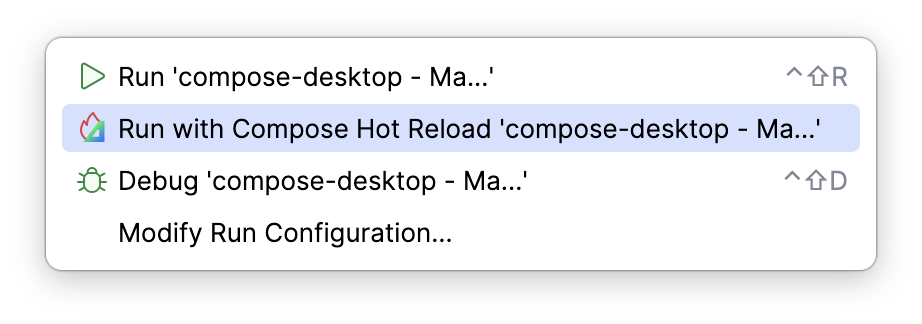
My application doesn't start in the Hot Reload mode, please help!
Make sure that:
- you have installed and enabled the Kotlin Toolchain IDEA plugin
- your module has the
jvmtarget (jvm/appproduct type, or a library module withjvmplatform)
How do I run my app without the Hot Reload mode in the IDE?
Modify the run configuration by removing the "Compose Hot Reload" option:
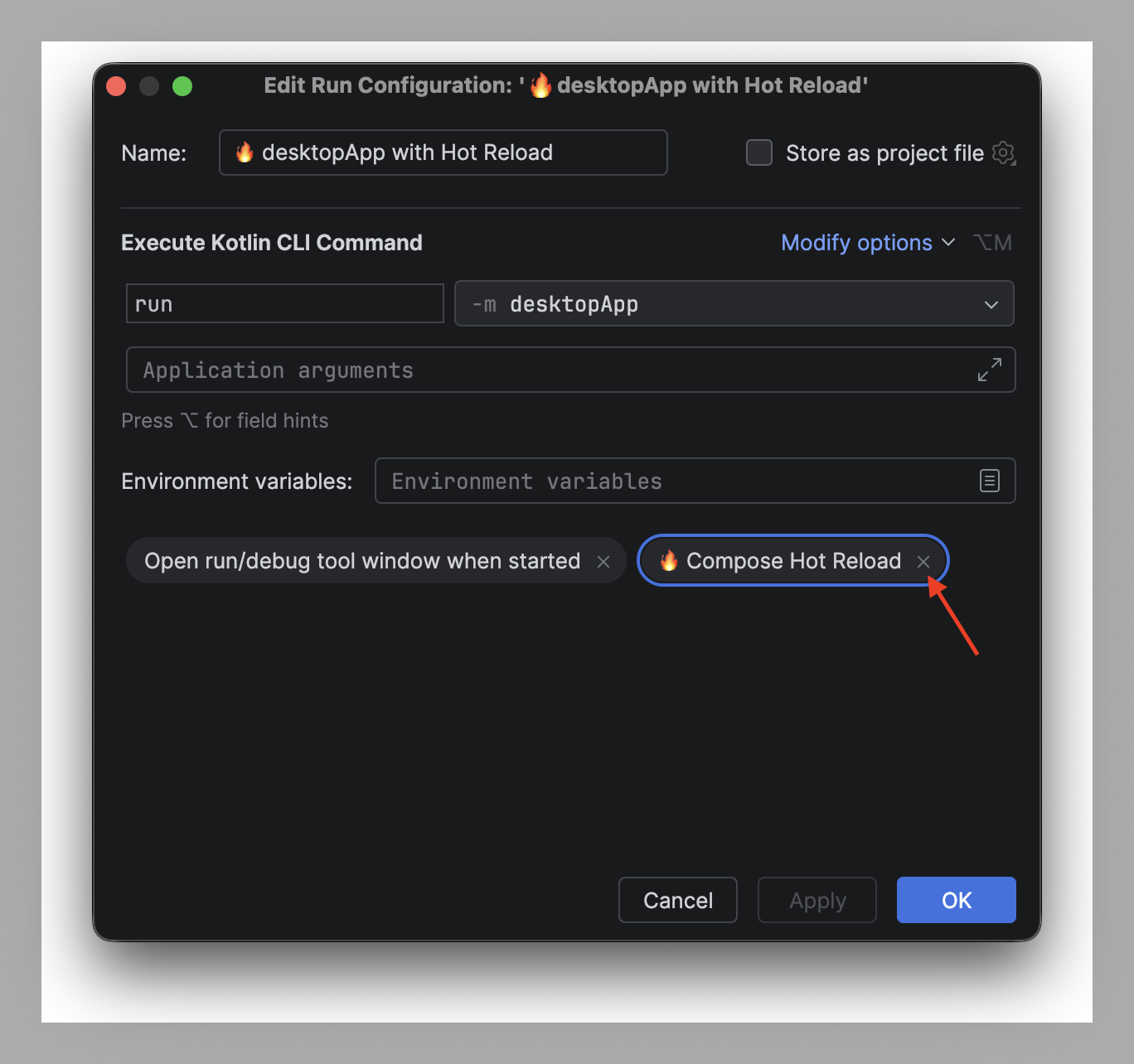
In this mode, IDEA will recompile and hot-reload your application based on file system changes.
If your JVM application has Compose enabled, you can simply run it from the command line with the kotlin run command.
It is equivalent to running it with the --compose-hot-reload flag:
./kotlin run --compose-hot-reload
If you want to run it without Compose Hot Reload, use the --no-compose-hot-reload flag:
./kotlin run --no-compose-hot-reload
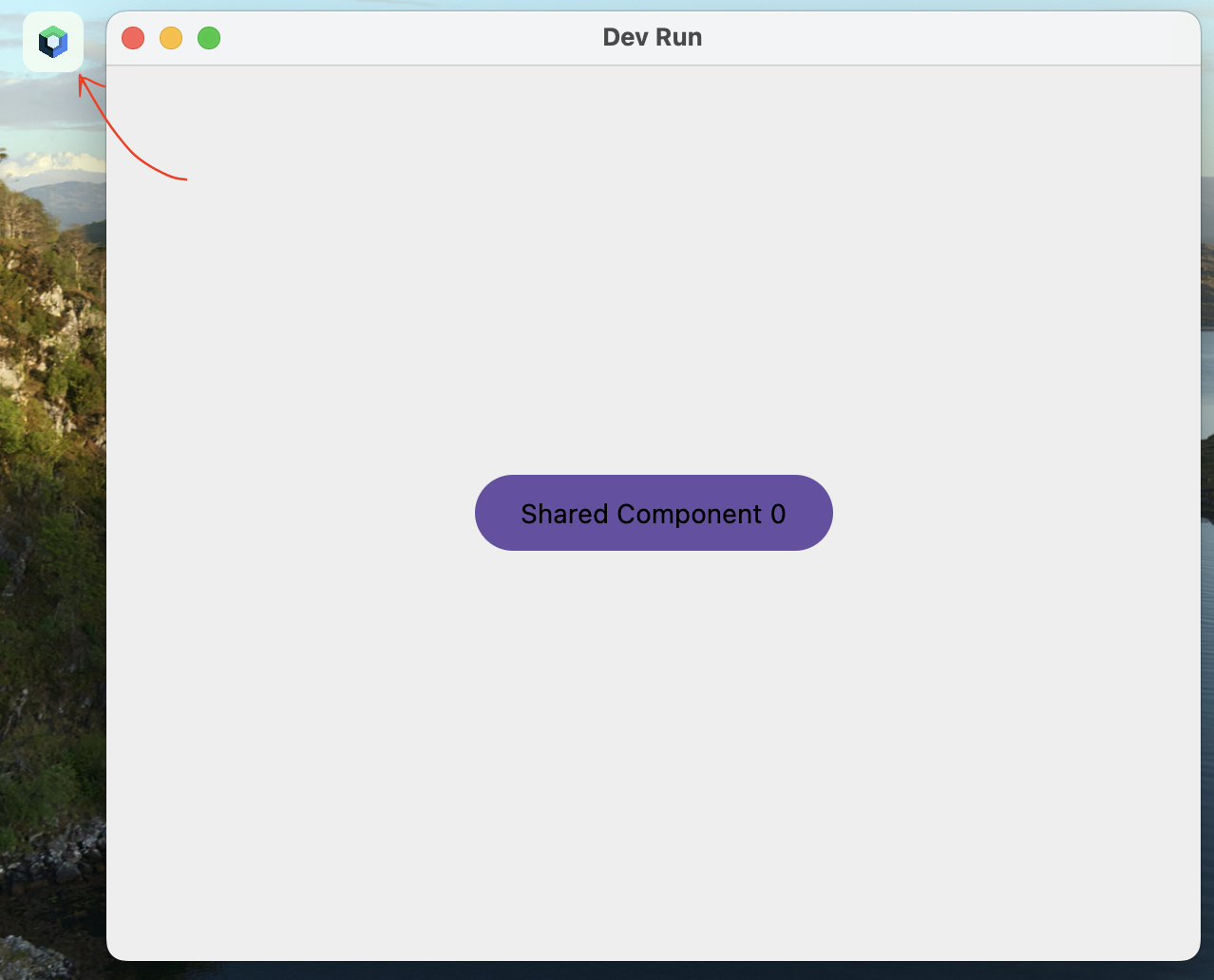
When you run your application with Compose Hot Reload enabled:
- The Kotlin Toolchain automatically downloads and runs JetBrains Runtime to maximize hot-swap capabilities
- The Java agent for Compose Hot Reload is attached during execution
- A small Compose Hot Reload devtools icon appears next to the application window, indicating that the feature is active
- A file watcher is attached to detect changes in your source files and automatically recompile the application
Hot-run specific components
It's also possible to run specific composables in Compose Hot Reload mode instead of your entire application. This is especially useful to check library components or just individual parts of your apps.
To do that, add the Compose Hot Reload runtime API dependency to your module:
dependencies:
  - $compose.hotReload.runtimeApi # for @DevelopmentEntryPoint
And add the @DevelopmentEntryPoint annotation on any parameter-less @Composable function:
@DevelopmentEntryPoint // (1)!
@Composable
fun MySuperComponent() { // (2)!
    MyComponentWithParams(title = "Dummy title", description = "Lorem ipsum dolor sit amet")
}
- Makes the component runnable on its own
- The component must not have parameters
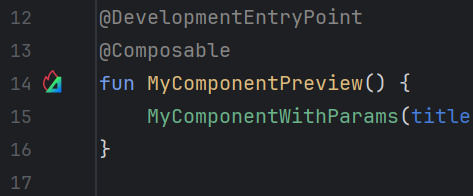
A clickable gutter icon will appear on the left side of the composable.
Hot-reloading components with parameters
If your component needs parameters, you can create a wrapper component that just creates your component with
the parameter values you want to use for the hot run, and annotate the wrapper with @DevelopmentEntryPoint:
@DevelopmentEntryPoint
@Composable
fun MyComponentPreview() {
    MyComponentWithParams(title = "Dummy title", description = "Lorem ipsum dolor sit amet")
}

@Composable
fun MyComponentWithParams(title: String, description: String) {
    // Your composable code here
}
Connect an AI agent
Compose Hot Reload provides an MCP server that lets an AI agent inspect the composables of the running application (including screenshots of them), trigger hot reloads, and interact with the UI by triggering actions such as button clicks, typing text, and scrolling. This is much faster than taking OS screenshots of the desktop app or using mobile simulators.
Start your application with ./kotlin run --compose-hot-reload (or the Run with Compose Hot Reload option in the IDE),
and configure your agent to launch the MCP server with the compose-hot-reload-mcp-server command.
Most agents read this configuration from an .mcp.json file in the project root:
{
  "mcpServers": {
    "Compose Hot Reload": {
      "command": "./kotlin",
      "args": [
        "compose-hot-reload-mcp-server"
      ]
    }
  }
}
Note
The MCP server requires Compose Hot Reload 1.2.0 or later. It finds the running application via the
build directory, so if you customize it, use the same build directory for run --compose-hot-reload.
Custom Compose Hot Reload version
You can optionally customize the version of Compose Hot Reload used by the Kotlin Toolchain this way:
settings:
  compose:
    enabled: true
    experimental:
      hotReload:
        version: 1.0.0-rc3